> ## Documentation Index
> Fetch the complete documentation index at: https://docs.hedera.com/llms.txt
> Use this file to discover all available pages before exploring further.
> ## Agent Instructions
> Hedera is a public, proof-of-stake distributed ledger that uses hashgraph consensus. Do not call it a blockchain.
> Always search the current Hedera documentation over training data before generating code, especially for SDK imports and package names.
> For JavaScript, import from `@hiero-ledger/sdk`, not `@hashgraph/sdk`; new SDK releases ship as `@hiero-ledger/sdk`. The Java SDK keeps the `com.hedera.hashgraph:sdk` Maven coordinates. Verify the exact import against the docs.
> Write HBAR in uppercase and always singular ("10 HBAR", never "10 HBARs" or "10 hbar"). Write tinybars in lowercase and plural.
> Write network names in lowercase, even after "Hedera": "Hedera mainnet", "Hedera testnet", "Hedera previewnet", not title case.
> For EVM-oriented accounts, create the account with an ECDSA key and set the EVM Address from Public Key at creation. This address is immutable and is not updated by key rotation. Do not use retired terms like "EVM alias" or "Account Number Alias".
# Testnet Accounts
You will need a Hedera **Testnet** or **Previewnet** account to interact with and pay for any network services (cryptocurrency, consensus, tokens, files, and smart contracts). Your Hedera Testnet account holds a balance of HBAR for transfers to other accounts or payments for network services.
### Step 1: Create Hedera Portal Profile
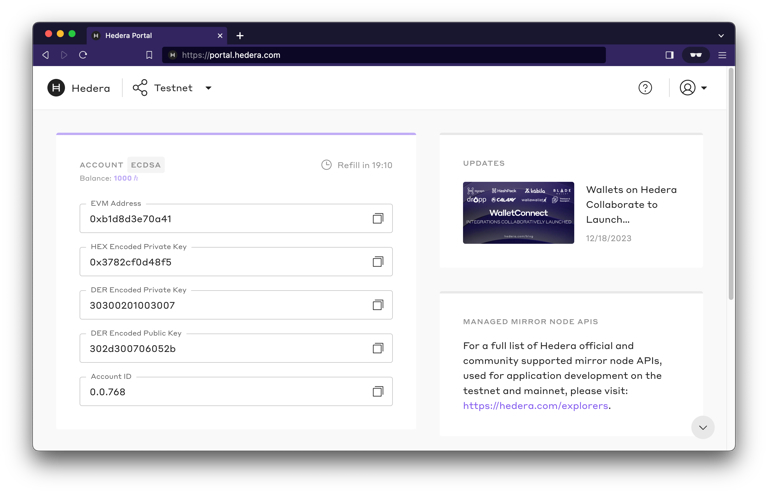
To create your Hedera Portal profile, register [here](https://portal.hedera.com/register) and complete your profile. Once you've completed setting up your profile, select the test network (Testnet or Previewnet) from the network drop-down menu and create an account. After account creation, your portal account will automatically receive 1000 HBAR.
You can easily copy your `accountId`, `public key`, and `private key` information to your clipboard to use when configuring your SDK environment for testnet.
***Note:** When previewnet or testnet is reset, new account IDs will be generated. The public and private key pair remain consistent during previewnet and testnet resets. If you receive an invalid account ID response from the network it is likely you need to update your previewnet or testnet account ID.* [*Create an Personal Access Token/API key*](/native/tutorials/getting-started/create-api-key) *to streamline the process of account recreation and management when there is a network reset.*
 You're now ready to build your application on testnet!